Windows Recovery Software
Windows Recovery Software: Your Ultimate Guide to Rescuing Lost Files and Fixing System Crashes
There are few feelings worse than the sudden, heart-stopping realization that your crucial files—your vacation photos, that massive work project, or years of financial records—have vanished. Maybe your system crashed, maybe you hit the delete button too quickly, or perhaps a virus wreaked havoc. Whatever the catastrophe, panic sets in fast.
But stop right there! Before you resign yourself to permanent data loss, know this: in most cases, those files are not truly gone, they are just invisible. This is where dedicated Windows Recovery Software comes into play, acting as your digital superhero, ready to dive into the depths of your hard drive and pull your precious data back to safety.
Why Do We Need Reliable Windows Recovery Software?
Windows operating systems are robust, but they are not infallible. Hard drives fail, human errors occur, and sometimes, a simple software glitch can render important partitions inaccessible. Relying solely on the Recycle Bin is simply not enough for comprehensive data protection.
Furthermore, when you delete a file in Windows, the operating system doesn't immediately erase the data. Instead, it marks the space on the hard drive as available for new data. The file remains physically present until something else overwrites it. This critical window of opportunity is exactly what specialized Windows Recovery Software exploits.
Common Scenarios Where Data Gets Lost
Understanding the threats helps you appreciate the necessity of having a reliable recovery tool ready. Data loss isn't just about deleting a single document; it often involves catastrophic system failures.
Here are the most common ways people lose their data:
- Accidental Deletion: The classic mistake. You meant to delete file A, but you deleted folder B instead, and then emptied the Recycle Bin immediately.
- Formatting Errors: Accidentally formatting the wrong partition or external drive during a system cleanup or OS installation process.
- System Crashes and Blue Screens: Unexpected power loss or hardware failure can corrupt the file system metadata, making entire folders inaccessible.
- Malware and Virus Attacks: Certain malicious software is designed specifically to encrypt or delete crucial user files, often demanding a ransom for their return.
- Partition Loss: Sometimes, the table that defines your hard drive partitions gets corrupted, making it appear as if half your drive space has vanished.
Key Features to Look for in Top Windows Recovery Software
When you are shopping around for the best tool, the market can feel overwhelming. Not all recovery programs are created equal. You need a powerful and intelligent program that can handle complex recovery scenarios effectively. Look for these essential features.
Deep Scan Capabilities vs. Quick Scan
A good program offers options based on the severity of the loss. Quick Scan is great for files that were recently deleted and are still easily recognized by the file table. It's fast and efficient.
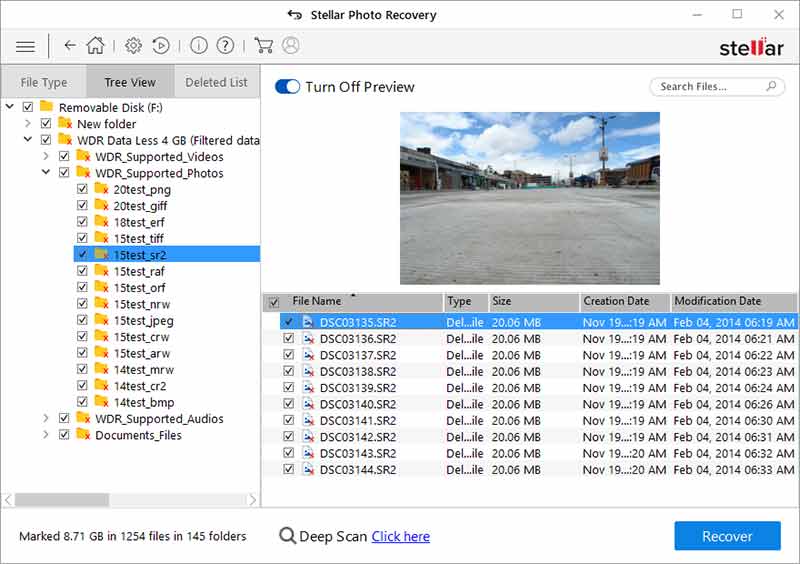
However, for formatted drives, corrupted partitions, or long-lost files, you need a Deep Scan. This process reads the drive sector by sector, using file signatures (header and footer patterns) to reconstruct files even if their metadata has been completely wiped out. This feature is a must-have for robust Windows Recovery Software.
User Interface and Ease of Use
When you are stressed about losing data, the last thing you need is complicated software. Top-tier recovery tools offer intuitive, wizard-driven interfaces. They guide you through the process, allowing you to select the drive, choose the scan type, and preview the results effortlessly.
Furthermore, look for filtering options. Being able to filter the results by file name, date, or type (like showing only JPEGs or DOCX files) drastically reduces the time needed to find what you are looking for among thousands of recovered fragments.
Specific File Type Support
Make sure the software supports the crucial file types you need to recover. While most programs handle standard documents (Word, Excel) and common media files (JPG, MP3) easily, professional users may require support for niche formats like RAW camera files (CR2, NEF), complex database files, or specialized video formats.
The best programs often boast support for hundreds of different file signatures, ensuring comprehensive recovery regardless of your profession or personal usage.
Step-by-Step: How Windows Recovery Software Works
While the internal algorithms are complex, the user process is usually straightforward. Here is a simple overview of how you typically use quality recovery software:
- Installation (Crucial Step): Install the software on a different drive or partition than the one you need to recover data from. Installing it on the source drive risks overwriting the very data you are trying to save.
- Scan Selection: Select the drive or specific folder where the data was lost. Choose between a Quick Scan or a Deep Scan.
- Scanning: The software maps the entire drive, looking for file fragments and deleted metadata pointers. This can take anywhere from a few minutes to several hours, depending on the drive size and scan depth.
- Preview and Filter: Once the scan is complete, you will see a list of recoverable files. Use the preview feature to verify the file integrity (especially important for photos and videos).
- Recovery: Select the files you want and choose a safe location to save them. NEVER recover files back to the original source drive, as this can cause further corruption.
The Importance of Acting Fast
Time is the enemy of successful data recovery. The moment you realize data is missing, you must stop using that computer immediately. Every operation—browsing the internet, saving a new document, or even just installing a program—writes new data to the disk.
If you continue using the drive, you risk overwriting the deleted files, making them permanently unrecoverable by any Windows Recovery Software, no matter how sophisticated. For maximum success, shut down the computer or disconnect the affected drive until you are ready to perform the recovery.
Conclusion: Protecting Your Digital Life with Windows Recovery Software
Losing data is stressful, but it doesn't have to be permanent. Investing in high-quality Windows Recovery Software is an essential part of modern digital life, offering peace of mind when the unexpected happens. Look for tools that combine powerful deep scanning, support for multiple file types, and a user-friendly interface to maximize your chances of getting everything back.
Remember, while recovery software is incredibly powerful, it is always best used in conjunction with a solid backup strategy. But when your backups fail or data loss is sudden, knowing you have a reliable recovery solution is your safety net.
Frequently Asked Questions (FAQ)
- Can free Windows Recovery Software truly recover my files?
- Many free versions are excellent for recovering small amounts of data or recently deleted files. However, they often impose file size limits (e.g., 500MB to 2GB) and may lack the advanced Deep Scan features needed for complex or heavily corrupted data loss scenarios. For serious recovery, a paid, professional tool is usually necessary.
- Is it safe to use Windows Recovery Software on my main hard drive (C: drive)?
- Yes, it is safe to scan your C: drive. However, it is never safe to INSTALL the recovery software directly onto the C: drive if that is where the lost data resides. Furthermore, you must always recover the found files to an external drive or a different, healthy partition to avoid overwriting existing recoverable data.
- Does recovery software work on SSDs (Solid State Drives) as well as HDDs?
- Recovery on SSDs is generally more challenging than on older HDDs. This is primarily due to the TRIM command, which modern operating systems use to permanently erase deleted data on SSDs to maintain performance. If TRIM has had time to run, data recovery chances decrease significantly. Therefore, speed is paramount when trying to recover files from an SSD.
- Can I recover data from an external hard drive or USB stick?
- Absolutely. Most high-quality Windows Recovery Software is designed to work seamlessly across various storage media, including external HDDs, SSDs, USB flash drives, SD cards, and even formatted memory cards from cameras.
- What is the difference between data recovery software and system backup software?
- System backup software (like Windows File History or dedicated third-party backup tools) proactively creates copies of your files to prevent loss. Data recovery software is reactive; it attempts to fix the problem and retrieve data *after* the loss has occurred. Both are vital parts of a comprehensive data security plan.
Windows Recovery Software
Windows Recovery Software Wallpapers
Collection of windows recovery software wallpapers for your desktop and mobile devices.

Captivating Windows Recovery Software Abstract Collection
Immerse yourself in the stunning details of this beautiful windows recovery software wallpaper, designed for a captivating visual experience.

Detailed Windows Recovery Software Picture Digital Art
Transform your screen with this vivid windows recovery software artwork, a true masterpiece of digital design.
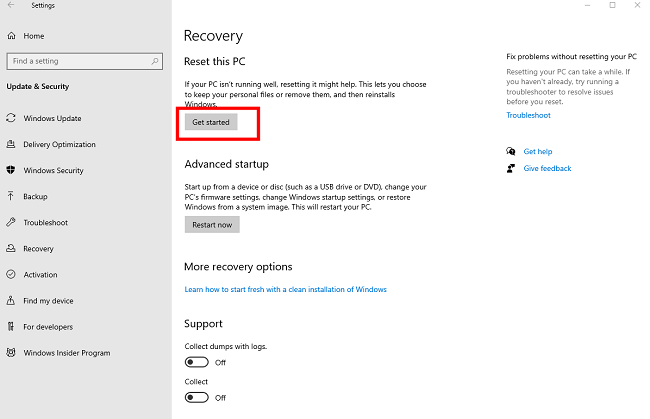
Lush Windows Recovery Software Abstract Art
This gorgeous windows recovery software photo offers a breathtaking view, making it a perfect choice for your next wallpaper.
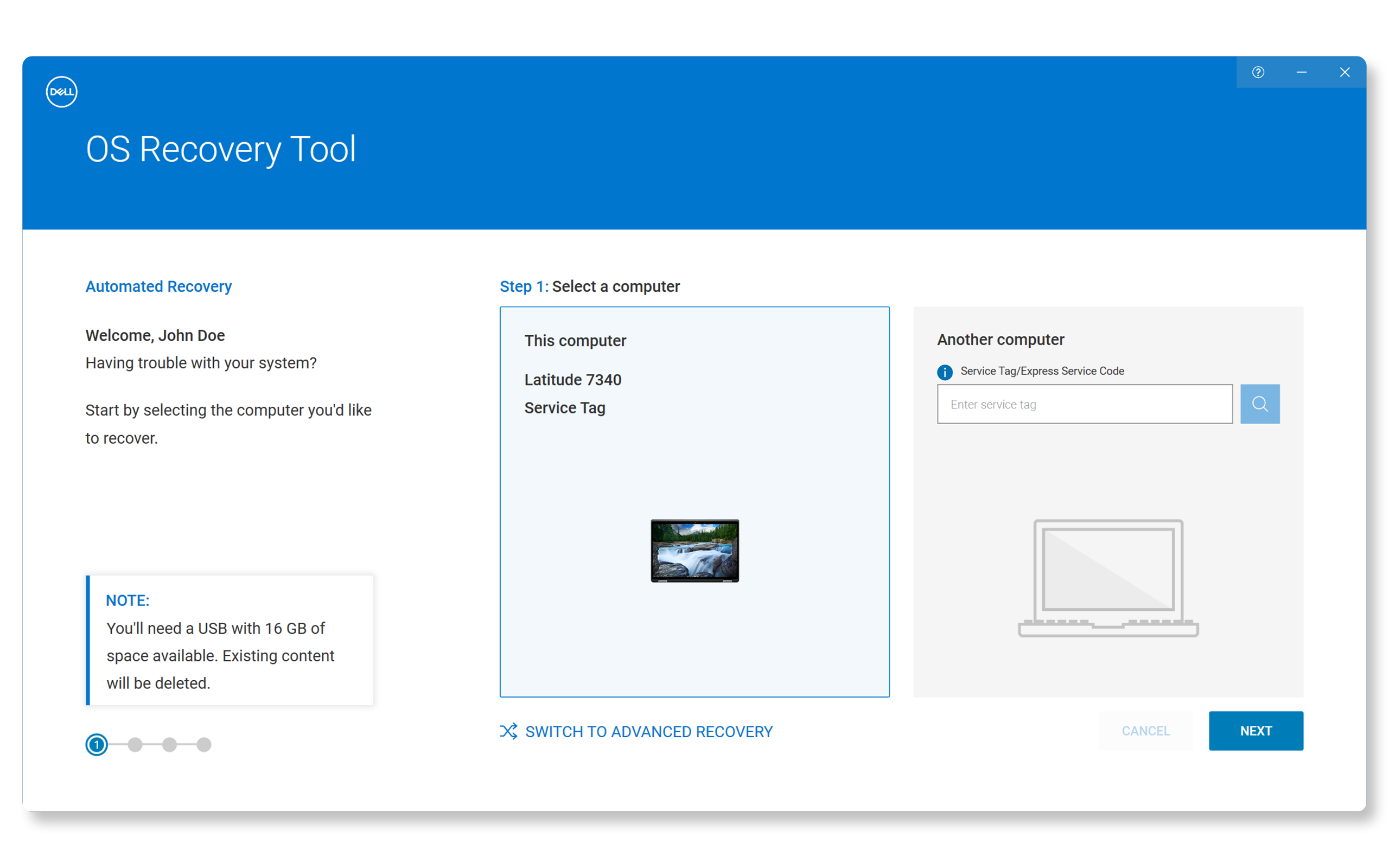
Spectacular Windows Recovery Software Background for Desktop
This gorgeous windows recovery software photo offers a breathtaking view, making it a perfect choice for your next wallpaper.

Lush Windows Recovery Software Landscape Digital Art
Find inspiration with this unique windows recovery software illustration, crafted to provide a fresh look for your background.
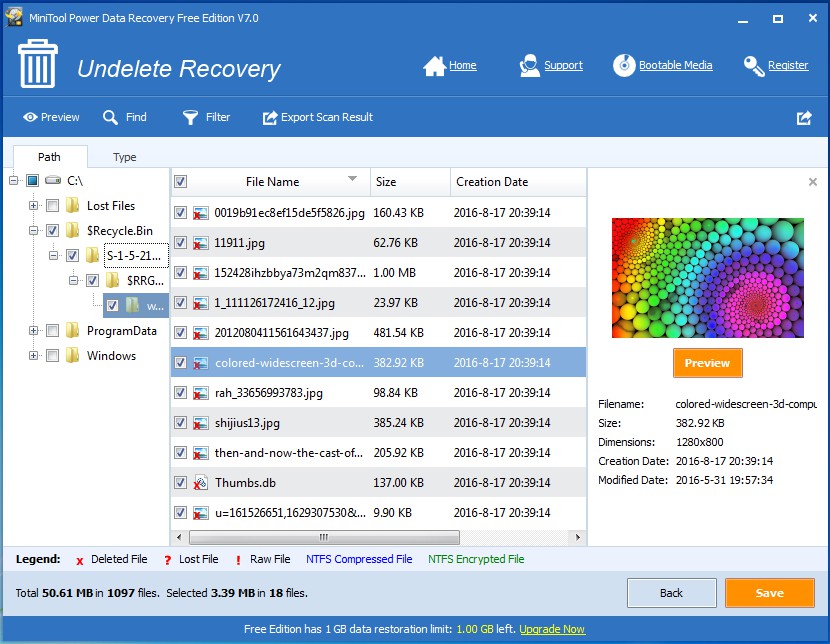
Detailed Windows Recovery Software Background in HD
Explore this high-quality windows recovery software image, perfect for enhancing your desktop or mobile wallpaper.

Serene Windows Recovery Software Design for Mobile
Experience the crisp clarity of this stunning windows recovery software image, available in high resolution for all your screens.

Vibrant Windows Recovery Software Design Digital Art
Discover an amazing windows recovery software background image, ideal for personalizing your devices with vibrant colors and intricate designs.
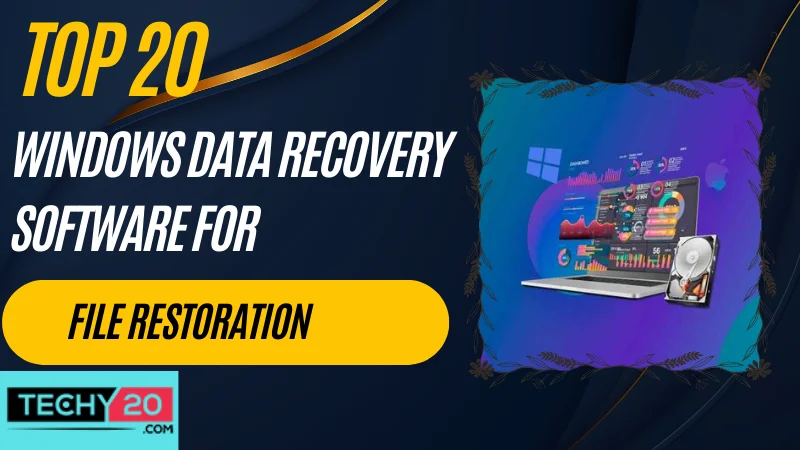
Lush Windows Recovery Software Moment Nature
Immerse yourself in the stunning details of this beautiful windows recovery software wallpaper, designed for a captivating visual experience.
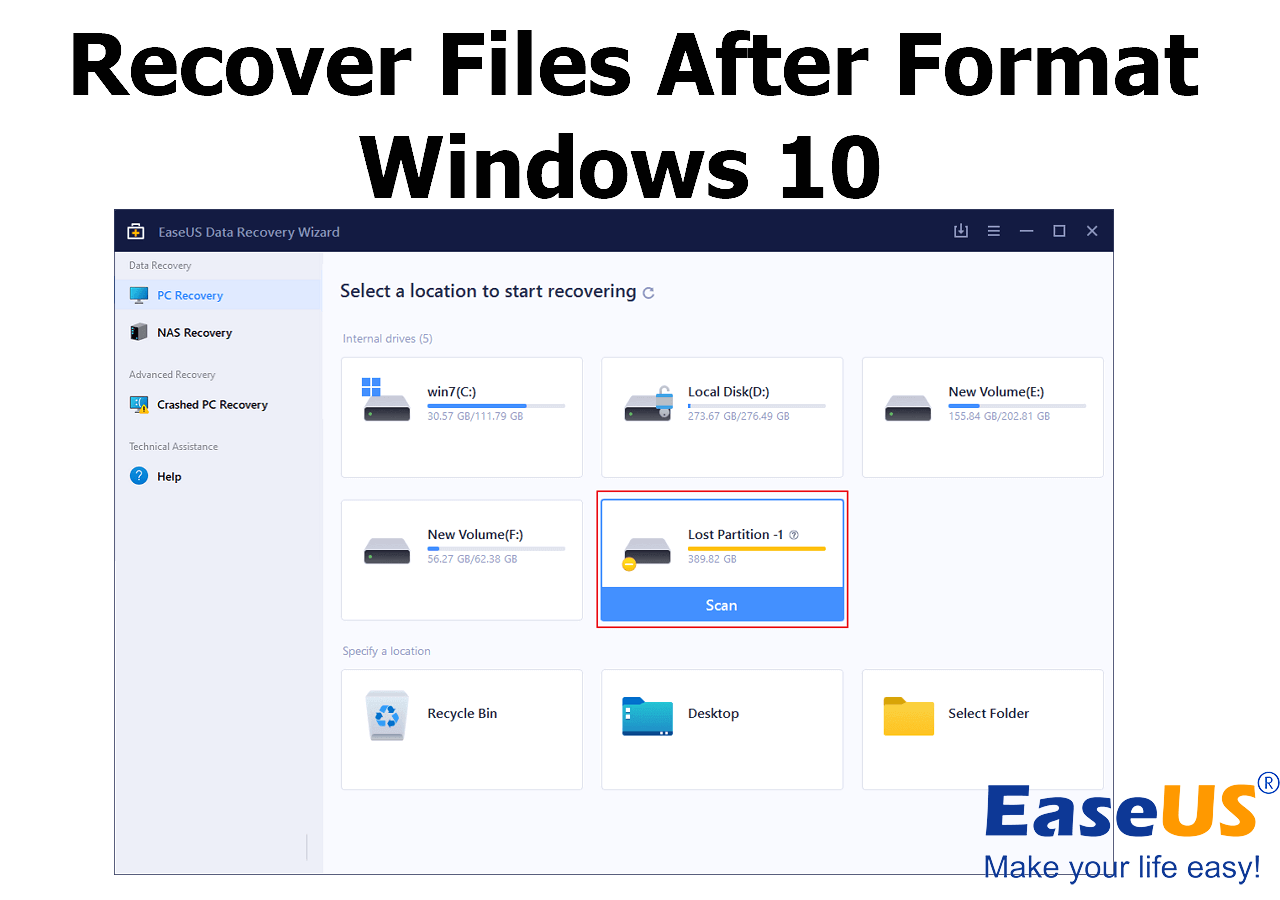
Exquisite Windows Recovery Software Wallpaper Digital Art
Immerse yourself in the stunning details of this beautiful windows recovery software wallpaper, designed for a captivating visual experience.
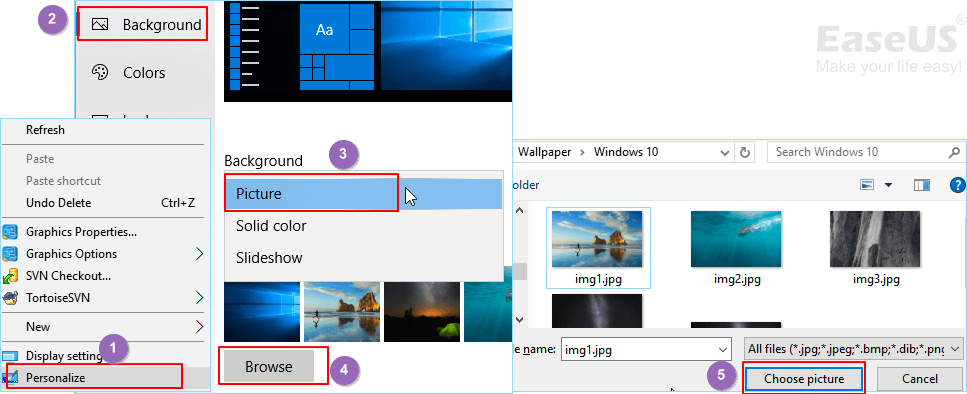
Vibrant Windows Recovery Software Photo Art
Explore this high-quality windows recovery software image, perfect for enhancing your desktop or mobile wallpaper.
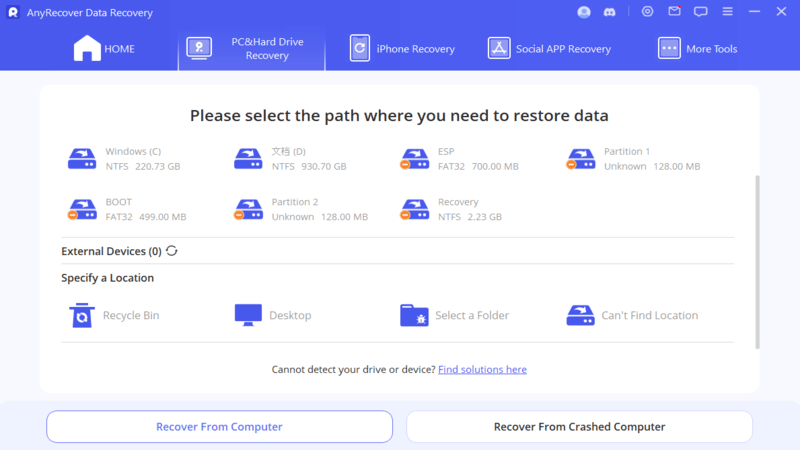
Mesmerizing Windows Recovery Software Abstract Illustration
Explore this high-quality windows recovery software image, perfect for enhancing your desktop or mobile wallpaper.
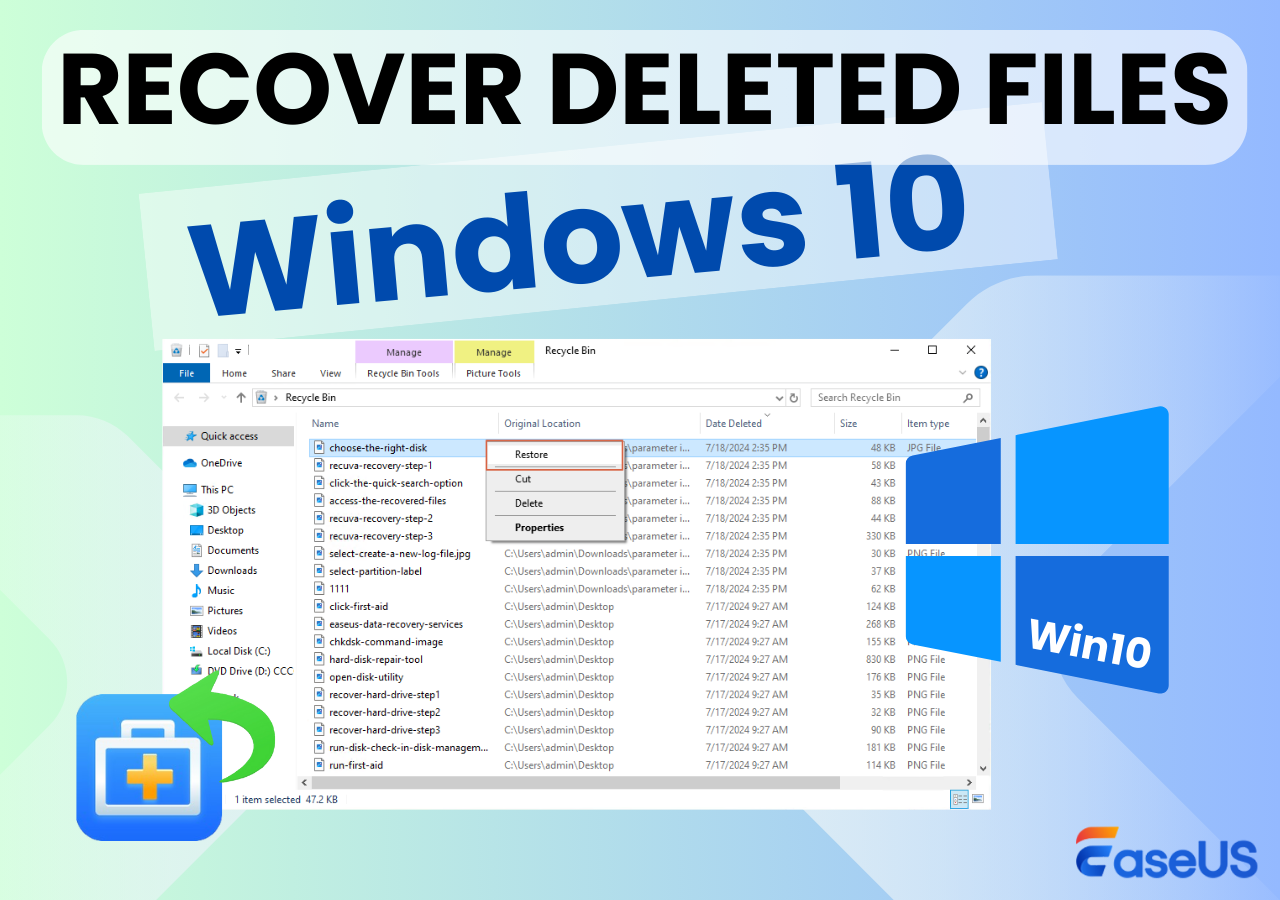
High-Quality Windows Recovery Software Capture Concept
Explore this high-quality windows recovery software image, perfect for enhancing your desktop or mobile wallpaper.
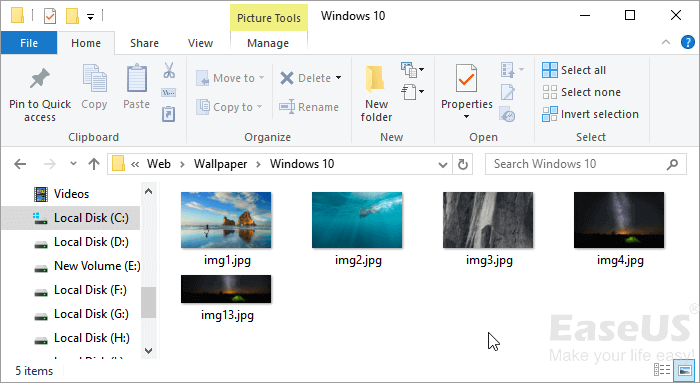
Artistic Windows Recovery Software Moment in 4K
Find inspiration with this unique windows recovery software illustration, crafted to provide a fresh look for your background.
Dynamic Windows Recovery Software Capture Concept
Find inspiration with this unique windows recovery software illustration, crafted to provide a fresh look for your background.
Exquisite Windows Recovery Software Photo Illustration
A captivating windows recovery software scene that brings tranquility and beauty to any device.
Breathtaking Windows Recovery Software Artwork in 4K
Transform your screen with this vivid windows recovery software artwork, a true masterpiece of digital design.

Lush Windows Recovery Software Capture Concept
Immerse yourself in the stunning details of this beautiful windows recovery software wallpaper, designed for a captivating visual experience.
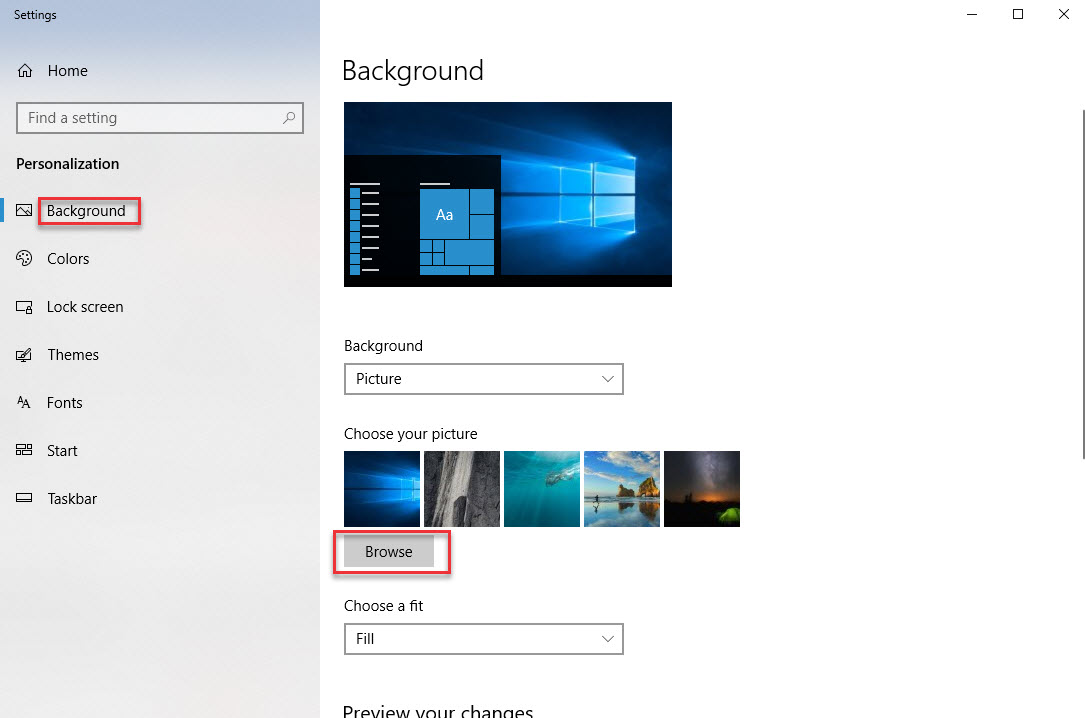
Artistic Windows Recovery Software Background for Your Screen
Immerse yourself in the stunning details of this beautiful windows recovery software wallpaper, designed for a captivating visual experience.
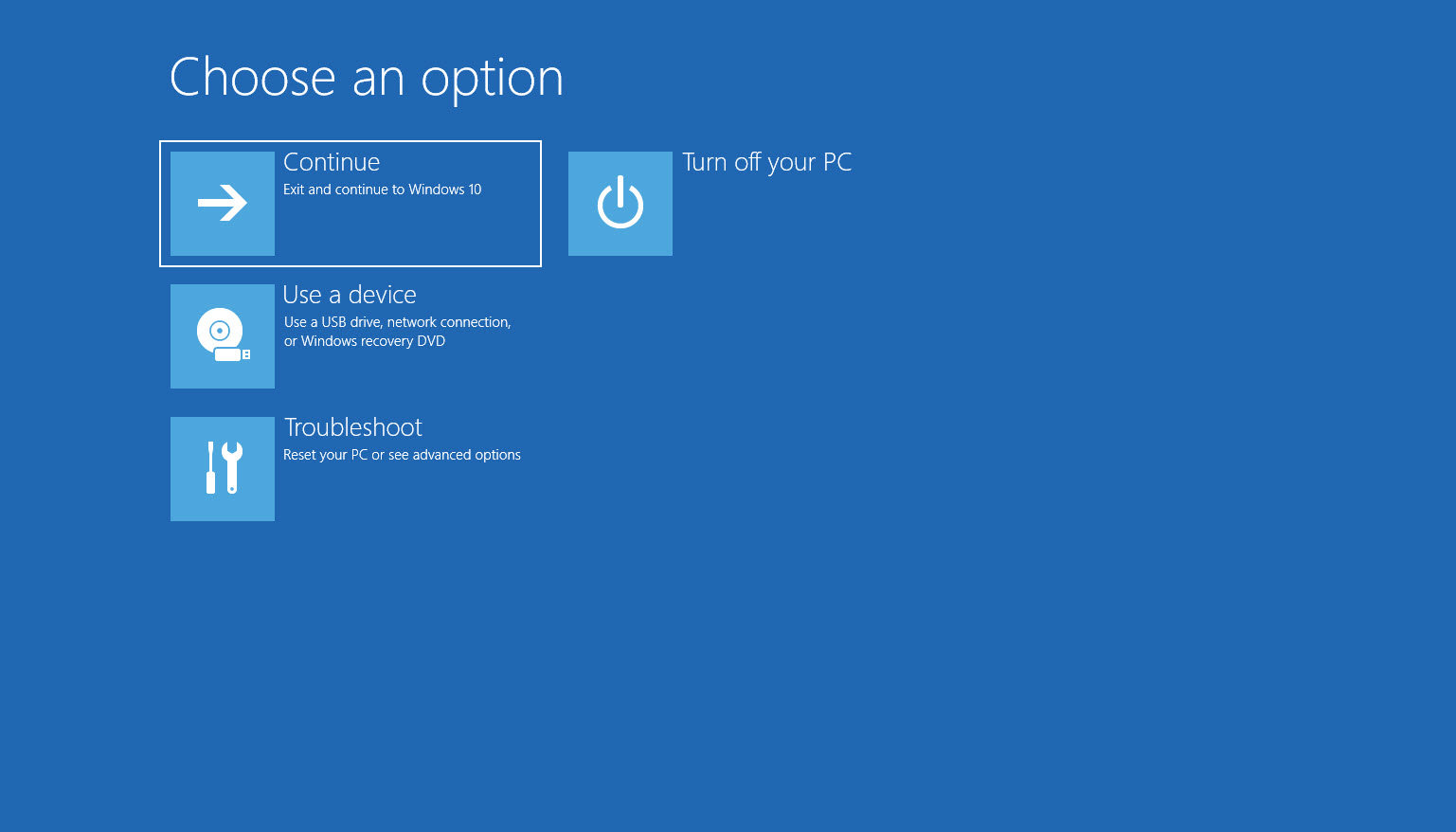
Gorgeous Windows Recovery Software Wallpaper in HD
Immerse yourself in the stunning details of this beautiful windows recovery software wallpaper, designed for a captivating visual experience.
Download these windows recovery software wallpapers for free and use them on your desktop or mobile devices.
0 Response to "Windows Recovery Software"
Post a Comment