Software Update Failed Ios
Software Update Failed iOS? Don't Panic! Here's Your Complete Fix Guide
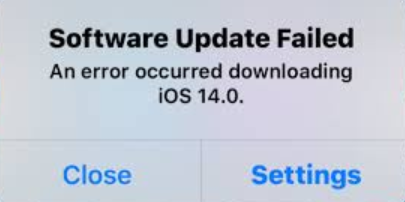
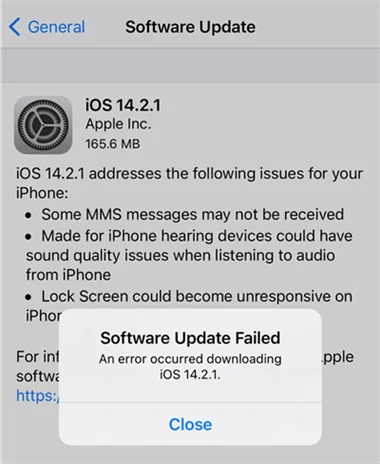
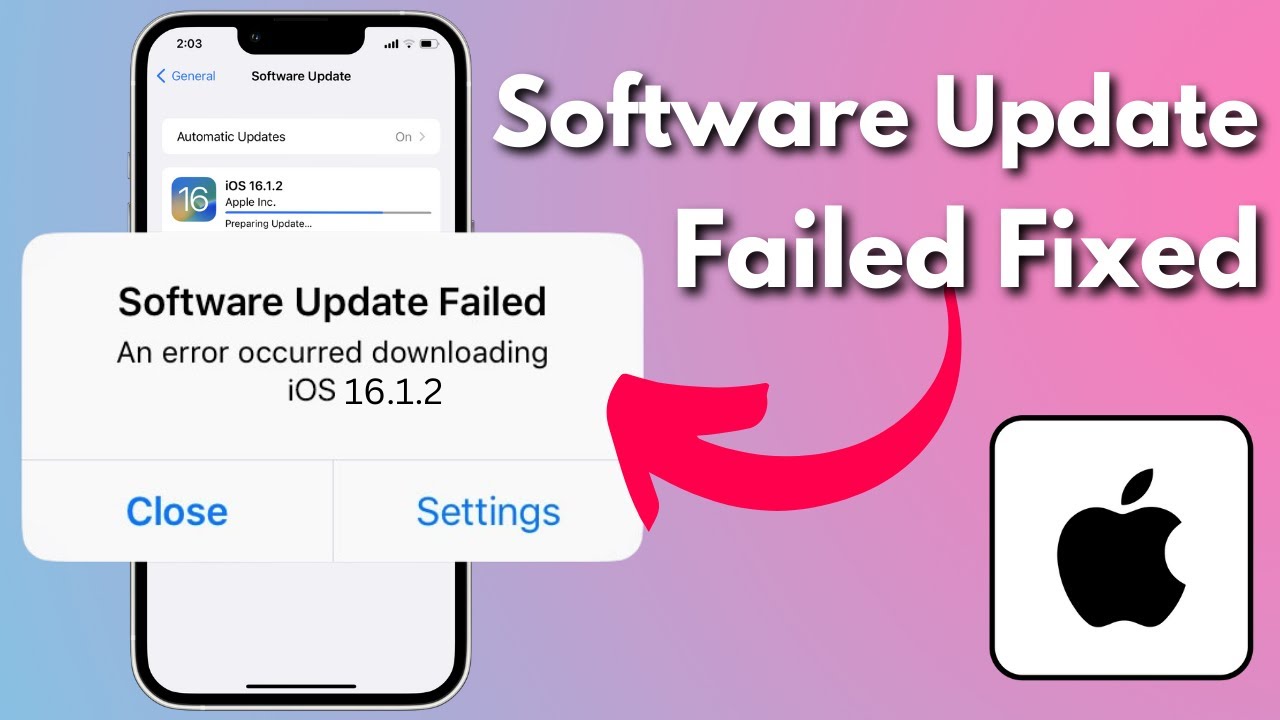
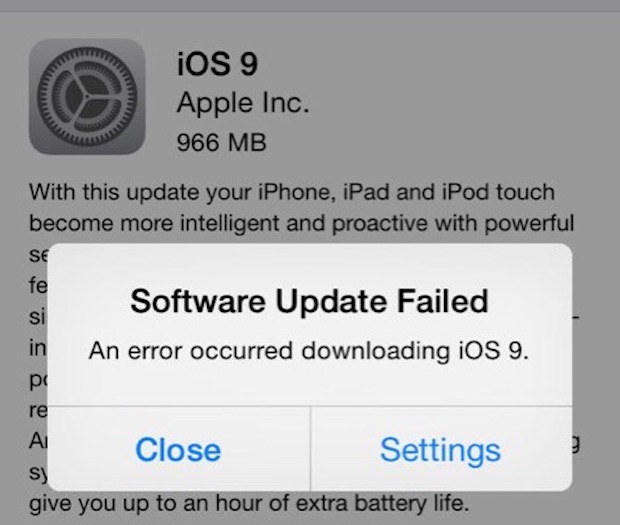
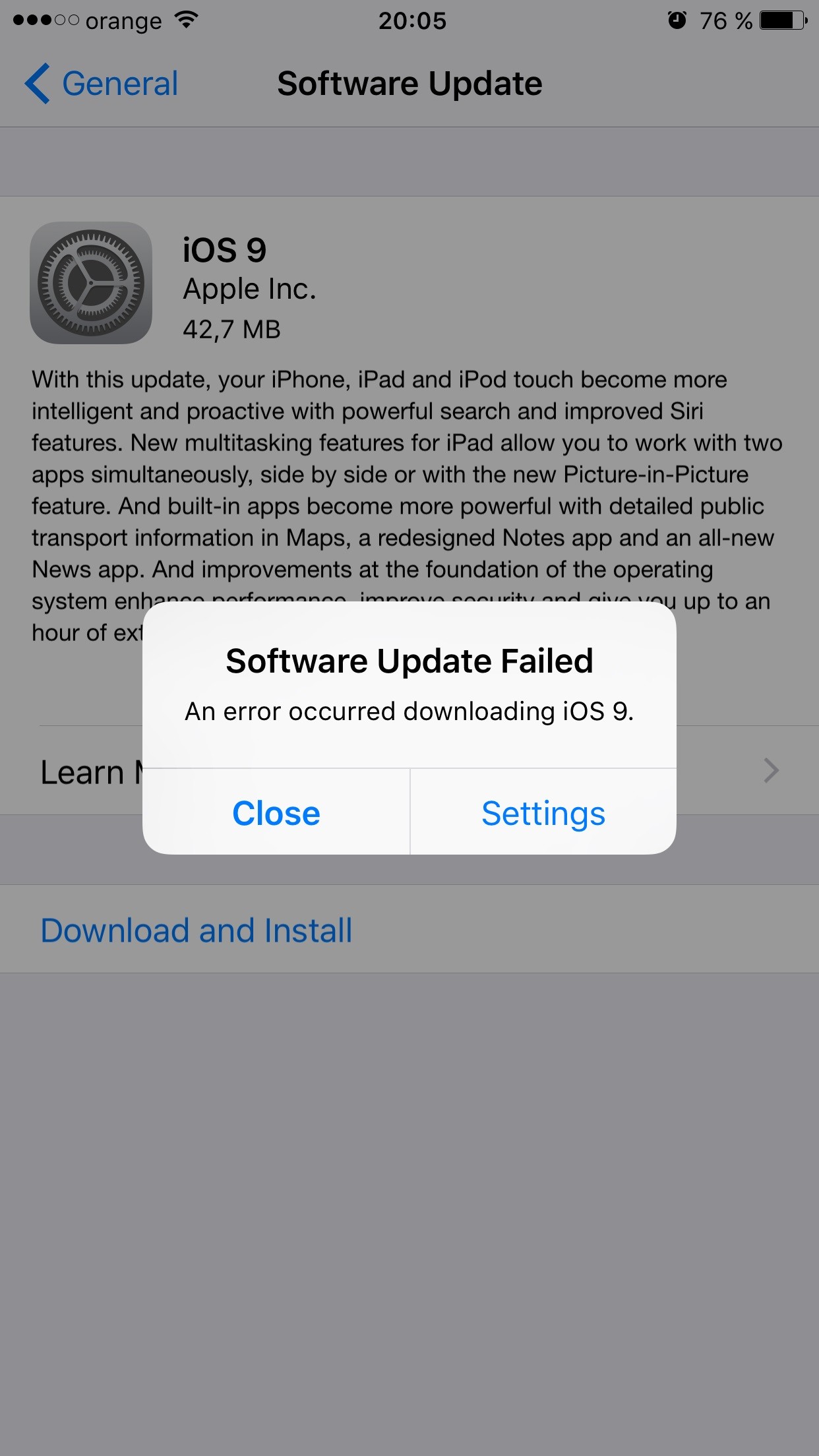
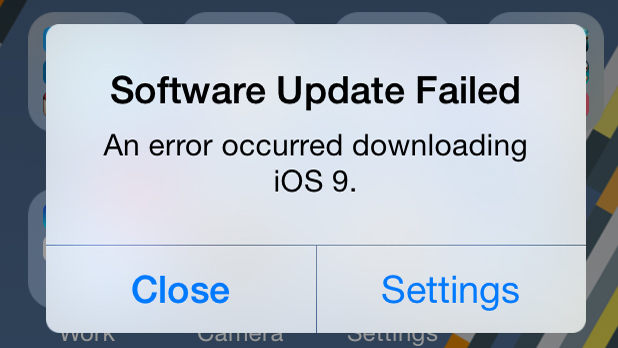
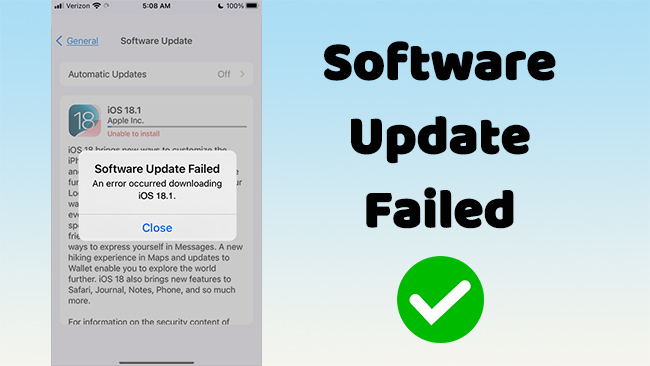
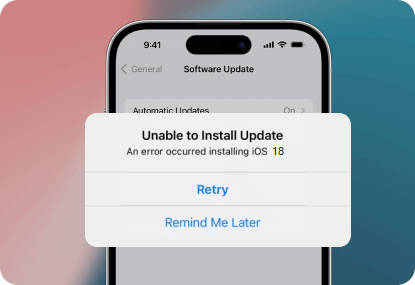
You excitedly hit 'Download and Install,' watched the progress bar inch forward, and then—wham! The dreaded error message pops up: "Software Update Failed." It's incredibly frustrating, especially when you're eager to try out the latest features or security patches. If you are struggling with a persistent "Software Update Failed iOS" message, take a deep breath. You are not alone, and in most cases, this issue is fixable right from your desk.
Whether the update stopped mid-way, your iPhone is stuck on the Apple logo, or you simply can't get the download to start, we've broken down every possible cause and solution. This guide will walk you through simple quick fixes before diving into more technical recovery methods.
Why Your Software Update Failed iOS: Common Culprits
Before we jump into fixing the problem, it helps to understand why your device might be rejecting the new software. Knowing the root cause makes the solution much easier to pinpoint. The common reasons behind a "Software Update Failed iOS" error usually fall into three main categories.
Connectivity Issues
iOS updates are massive files, often several gigabytes in size. A stable, fast internet connection is crucial for a successful download and verification. If your Wi-Fi signal drops even for a moment during the download process, the whole thing can fail.
Furthermore, if you are attempting to update right when a new iOS version is released, Apple's servers might be overloaded. High traffic volumes can cause server timeouts, resulting in a failed installation attempt on your end. Always ensure you are on a private, strong Wi-Fi network before starting.
Storage Constraints
This is arguably the most common cause. Even if the update file is 3GB, your iPhone needs significantly more free space—sometimes double the file size—to decompress the update, install it, and verify the integrity of the new operating system.
If your device warns you that storage is almost full, the update will almost certainly fail. Before attempting any major OS change, check your available storage under Settings > General > iPhone Storage. Free up space by deleting old media or offloading unused apps.
Immediate Troubleshooting Steps for Software Update Failures
Don't reach for the USB cable just yet! Often, a few simple actions can resolve the "Software Update Failed iOS" notification and get you back on track. These steps are fast, require no additional tools, and fix minor glitches quickly.
The Simple Restart
It sounds cliché, but turning your device off and on again clears temporary glitches and refreshes the system memory. A simple reboot is often all it takes to clear up communication errors between your iPhone and the update server.
If a simple restart doesn't work, try a Force Restart (the method varies depending on your iPhone model, usually involving pressing volume up, volume down, then holding the side button). This deeper reboot can sometimes resolve system-level errors that caused the update failure.
Checking Your Connection
If the error persists, you need to rigorously check your network environment. Switch your Wi-Fi off and back on. If possible, try connecting to a different, known good Wi-Fi network. Sometimes, specific router settings (like restrictive firewall rules) can interfere with the connection to Apple's update servers.
If all else fails, you may need to reset your network settings, which deletes all saved Wi-Fi passwords and connections. Go to Settings > General > Transfer or Reset iPhone > Reset > Reset Network Settings. Just be ready to re-enter your Wi-Fi credentials afterwards.
Delete the Downloaded Update File
It's possible the downloaded file itself is corrupted, which leads to the "Software Update Failed iOS" message during the verification stage. Deleting this corrupted file forces your device to download a fresh, clean copy.
- Go to Settings > General > iPhone Storage.
- Scroll down and find the iOS update package (it will be listed as 'iOS 17.x Update' or similar).
- Tap on the update file and select 'Delete Update'.
- Restart your iPhone.
- Go back to Settings > General > Software Update and try downloading it again.
When Direct Update Fails: Using Finder or iTunes
If you have tried the basic fixes and the "Software Update Failed iOS" notification keeps popping up, it's time to bring in the big guns: updating via a computer. This method is often more reliable because the computer handles the download and verification process, bypassing potential Wi-Fi issues on your device.
Before you start, make sure you have the latest version of macOS (if using a Mac) or the latest version of iTunes (if using a PC). Always use an official Apple Lightning or USB-C cable for a stable connection.
Updating via Computer (The Safer Route)
Connecting your device directly to your computer gives you the best chance of resolving persistent software update problems. It's a dedicated, secure channel for the process.
Follow these steps:
- Connect your iPhone to your computer using a USB cable.
- Open Finder (on Mac running Catalina or newer) or iTunes (on PC or older Mac).
- Select your device when it appears in the sidebar.
- Click 'Check for Update' under the Summary or General tab.
- Click 'Download and Update'.
This process downloads the software directly to your computer's hard drive and then installs it cleanly onto your phone. This method drastically reduces the likelihood of the update failing due to weak Wi-Fi or device storage issues.
Putting Your Device in Recovery Mode
If the update failed so severely that your phone is stuck in a boot loop or displays the connect-to-computer screen, you may need to use Recovery Mode. This is a powerful, last-resort tool that restores your device to factory settings and installs the newest iOS version available.
Since Recovery Mode restores the phone, make absolutely sure you have a recent backup saved either to iCloud or your computer. When you initiate Recovery Mode via Finder/iTunes, you will be given the option to 'Update' or 'Restore'. Always try 'Update' first, as this attempts to reinstall iOS without wiping your data.
How to Avoid Future Software Update Failed iOS Errors
Prevention is always better than cure. By adopting a few simple habits, you can drastically minimize the chances of seeing that annoying "Software Update Failed iOS" alert again.
Always check these items before attempting an OS update:
- Ensure Sufficient Storage: Aim for at least 6-8 GB of free space, regardless of the stated file size.
- Full Battery: Your iPhone needs at least 50% charge to start an update, but it's safest to keep it plugged into power.
- Strong Wi-Fi: Use your home network, not a public hotspot, and ensure you are close to the router.
- Timing is Key: Avoid updating immediately on release day. Wait 24-48 hours for server traffic to normalize.
- Create a Backup: This won't prevent a failure, but it will save you from data loss if a 'Restore' is required to fix a bad installation.
Conclusion
A "Software Update Failed iOS" message is frustrating, but it rarely signals a permanent problem with your hardware. Most issues are caused by temporary connectivity drops or insufficient storage. By deleting the corrupted update file, ensuring a strong connection, or utilizing the robust update process available through Finder/iTunes on a computer, you can overcome almost any software update hurdle.
Remember that updating your operating system is essential for security and performance. Take your time, follow these steps methodically, and you'll get your iPhone running the latest and greatest version of iOS successfully.
Frequently Asked Questions (FAQ)
- What should I do if my iPhone is stuck on the Apple logo after the update failed?
- If your phone is stuck in a boot loop (constantly showing the Apple logo), you must connect it to a computer and put it into Recovery Mode. Once in Recovery Mode, choose the "Update" option to reinstall the operating system without erasing your data.
- Is it better to update iOS over Wi-Fi or via my computer?
- For the most stable and reliable outcome, updating via your computer (using Finder or iTunes) is always recommended, especially if you have previously experienced a "Software Update Failed iOS" error. The computer connection is more robust than wireless downloads.
- How much free storage space do I really need for an iOS update?
- While the update file size varies, Apple generally recommends having at least 6 GB of free space. This space is needed not just for the download, but for the extraction and installation of the new files before the old ones are deleted.
- I deleted the update file, but it still fails. What next?
- If deleting the file didn't solve the "Software Update Failed iOS" problem, the issue is likely rooted in connectivity or storage deeper in the system. Your next best step is to try the update via your computer using Finder or iTunes.
Software Update Failed Ios
Software Update Failed Ios Wallpapers
Collection of software update failed ios wallpapers for your desktop and mobile devices.

Beautiful Software Update Failed Ios Design in HD
Experience the crisp clarity of this stunning software update failed ios image, available in high resolution for all your screens.

Vivid Software Update Failed Ios Picture Art
Discover an amazing software update failed ios background image, ideal for personalizing your devices with vibrant colors and intricate designs.
High-Quality Software Update Failed Ios Wallpaper for Your Screen
Explore this high-quality software update failed ios image, perfect for enhancing your desktop or mobile wallpaper.
Mesmerizing Software Update Failed Ios Landscape in HD
Experience the crisp clarity of this stunning software update failed ios image, available in high resolution for all your screens.

Detailed Software Update Failed Ios Artwork Illustration
Experience the crisp clarity of this stunning software update failed ios image, available in high resolution for all your screens.

Stunning Software Update Failed Ios Abstract in HD
Find inspiration with this unique software update failed ios illustration, crafted to provide a fresh look for your background.
Detailed Software Update Failed Ios Artwork Collection
Experience the crisp clarity of this stunning software update failed ios image, available in high resolution for all your screens.

Artistic Software Update Failed Ios Wallpaper Digital Art
This gorgeous software update failed ios photo offers a breathtaking view, making it a perfect choice for your next wallpaper.
Beautiful Software Update Failed Ios View for Desktop
Explore this high-quality software update failed ios image, perfect for enhancing your desktop or mobile wallpaper.
Gorgeous Software Update Failed Ios Picture for Mobile
This gorgeous software update failed ios photo offers a breathtaking view, making it a perfect choice for your next wallpaper.
Exquisite Software Update Failed Ios Image for Desktop
This gorgeous software update failed ios photo offers a breathtaking view, making it a perfect choice for your next wallpaper.
High-Quality Software Update Failed Ios Landscape Art
Experience the crisp clarity of this stunning software update failed ios image, available in high resolution for all your screens.
Lush Software Update Failed Ios View for Mobile
A captivating software update failed ios scene that brings tranquility and beauty to any device.
Beautiful Software Update Failed Ios View Illustration
Discover an amazing software update failed ios background image, ideal for personalizing your devices with vibrant colors and intricate designs.
Captivating Software Update Failed Ios Picture for Mobile
A captivating software update failed ios scene that brings tranquility and beauty to any device.

Spectacular Software Update Failed Ios Design Illustration
A captivating software update failed ios scene that brings tranquility and beauty to any device.

High-Quality Software Update Failed Ios Moment Illustration
Discover an amazing software update failed ios background image, ideal for personalizing your devices with vibrant colors and intricate designs.
Captivating Software Update Failed Ios Design in HD
This gorgeous software update failed ios photo offers a breathtaking view, making it a perfect choice for your next wallpaper.

Serene Software Update Failed Ios Landscape in 4K
Explore this high-quality software update failed ios image, perfect for enhancing your desktop or mobile wallpaper.
Vivid Software Update Failed Ios View for Mobile
Transform your screen with this vivid software update failed ios artwork, a true masterpiece of digital design.
Download these software update failed ios wallpapers for free and use them on your desktop or mobile devices.
0 Response to "Software Update Failed Ios"
Post a Comment